Your first session as a player
You do not need to prepare maps or understand every button. Your game master (GM) prepares the world; you bring a character, describe what they do, and use the tabletop to help everyone follow the action. This page contains no Willowmere adventure answers.
Use a desktop or laptop browser and a mouse or trackpad for this walkthrough. Arrange a way to talk with the group, and keep the world link your GM sends you somewhere you can find again.
1. Join your group
Sign in to your Aethera account. If you need an account, complete the site's sign-up steps first. Give your GM your exact username, so they can add that account to the world with the Player role. You never need to share your password.
Open the World link your GM sends using the account they added. If they send an invitation link, open it, sign in or finish creating your account, and accept the invitation. Keep the ordinary World link for returning sessions. If you cannot enter, ask the GM to check your username and membership before trying a different account.
2. Know what you are looking at
The world holds the campaign. A scene is the current location, and the map is its background picture. Your actor is the stored character record. Its token is the piece you move on the map.
Use Fit to bring the map into view. Use Pan to move your view without moving a token; switch back to Select when you want to interact with your piece. The sidebar contains things such as Actors, Journal, and Chat. Open Help from More controls, or press ?, for the controls reference.
If the map is black, tell the GM. You may be in a different scene, or the scene may need lighting and vision configuration. You do not need GM access to solve a setup problem.
3. Find your character
Ask the GM which character is yours. In Actors, use that character's action menu and Open sheet. The GM must give your account Owner permission on your character before you can control it; being a member of the world is a separate permission.
Check the name and the values you expect. For a full game, compare the sheet with your approved character and the rules version your group uses. A sheet with a name and a token is not necessarily a completed character.
Ask before changing something you do not recognize. To update HP during play, right-click your token, choose Show resources, change HP current, and choose Save. The linked actor sheet and token should show the same value, including in the GM's view. Changes to HP in the sheet also update the token. Agree with your GM when to change resources.
4. Move your token once
Close the sheet and click an empty part of the map to dismiss any token controls. With Select active, click your named token and drag it one square. Check that it finishes where you intended, then ask the GM whether they see the same position.
If it will not move, check that you selected the correct token and that the table is not paused. Ask the GM to check actor ownership. Avoid repeatedly dragging while the connection is uncertain.
Move only your own character. A wall drawn in the map image is still a wall in the story, even if the software lets you drag through it. During an encounter, describe your intended movement and follow the group's rules.
5. Make a practice roll
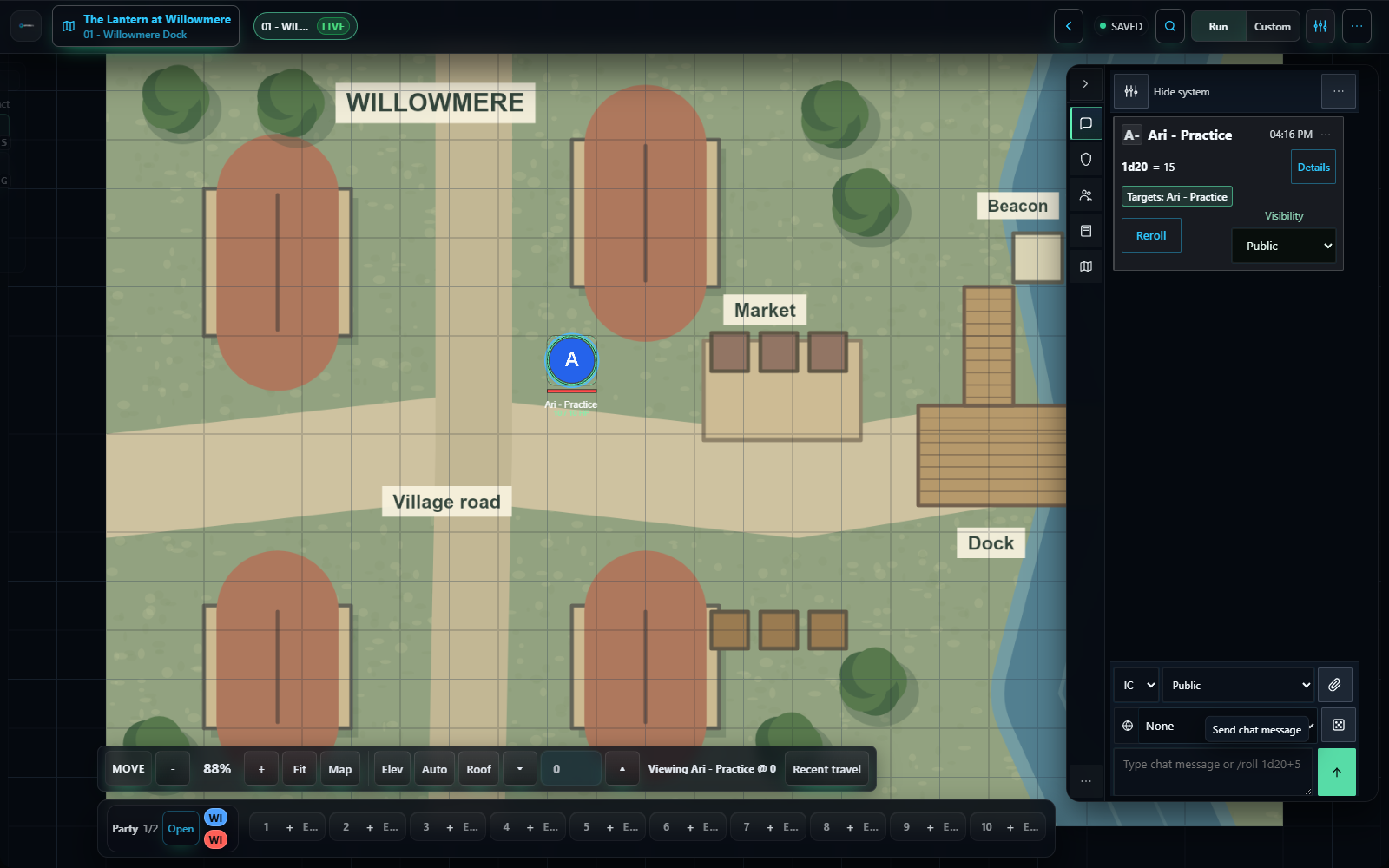
Open Chat in the Run workspace. Set the message's Visibility to Public, type /roll 1d20, and send it once. You should see a die-result card; the number will vary. Ask the GM whether they can see the same roll.
This is a practice roll. During the adventure, say what you want your character to do and let the GM tell you whether a roll is needed and which bonus to use. Do not assume every sheet button includes every rule automatically.
6. Read what the GM shares
In Journal, find the handout your GM names. Use its action menu and Open. You should see shared material, while private GM notes stay out of your directory.
For the included adventure, read Welcome to Willowmere. It gives you the premise and a reason for your character to help. Leave the GM adventure and the full starter-kit download to whoever is running it; those contain answers.
7. Follow the group and reconnect
When the GM activates a scene, your view should follow automatically. Their private preparation preview does not move you. If your connection drops, pause important edits and wait for it to reconnect; your view should catch up to the current scene. Preserve any unsaved text before reopening the ordinary World link if needed.
If you still disagree about the scene, token positions, or rolls, pause play and let the GM check the connection and permissions. Do not create another world or character to work around a temporary connection problem.
8. Be ready to play together
- You can reopen the world using the correct account.
- You can see and move your character, and the GM sees the same position.
- You can open your sheet and a shared handout.
- You and the GM can see your practice roll.
- Everyone knows how you will talk, when you will finish, and how to ask for a break.
You can speak normally: "I ask the ferrymaster what happened" is enough. You do not need a character voice, a prepared speech, or perfect knowledge of the interface. Asking for help is part of learning the table.