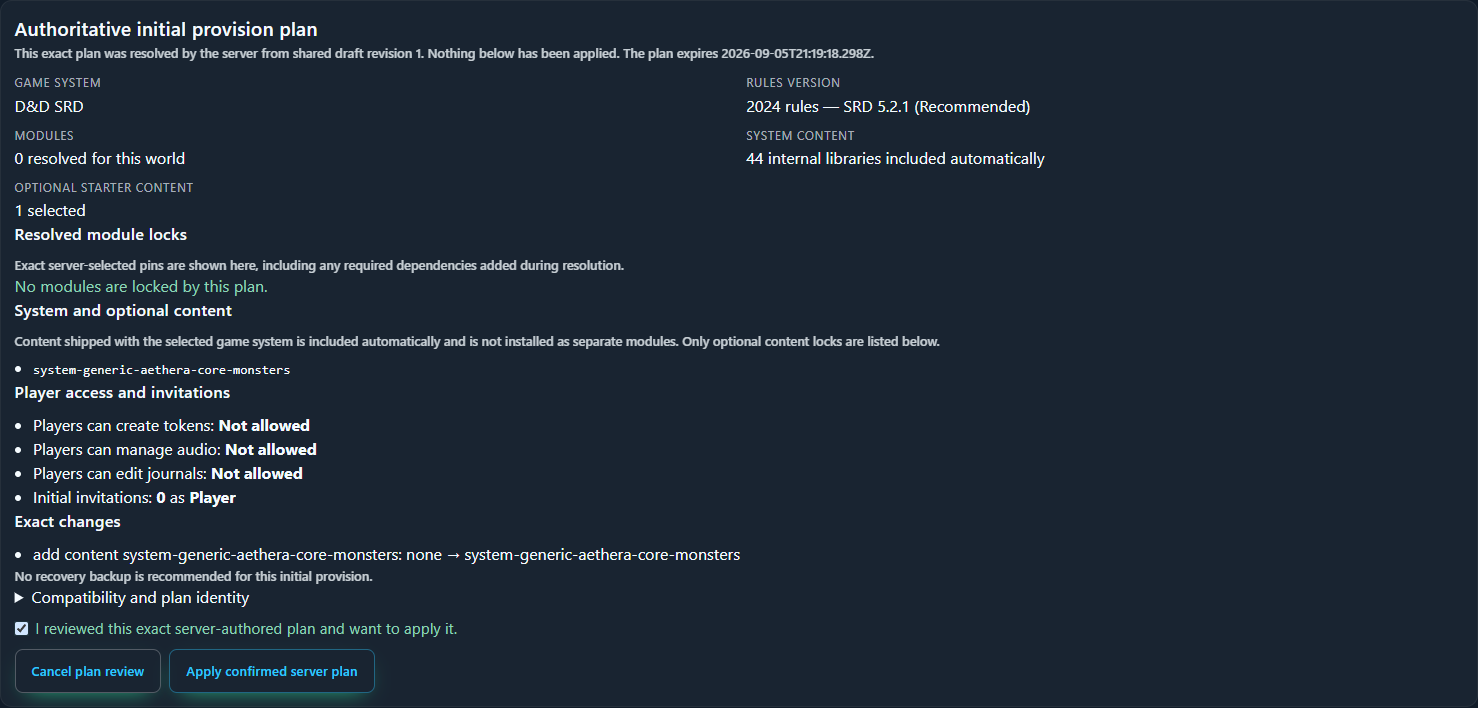
Create the world
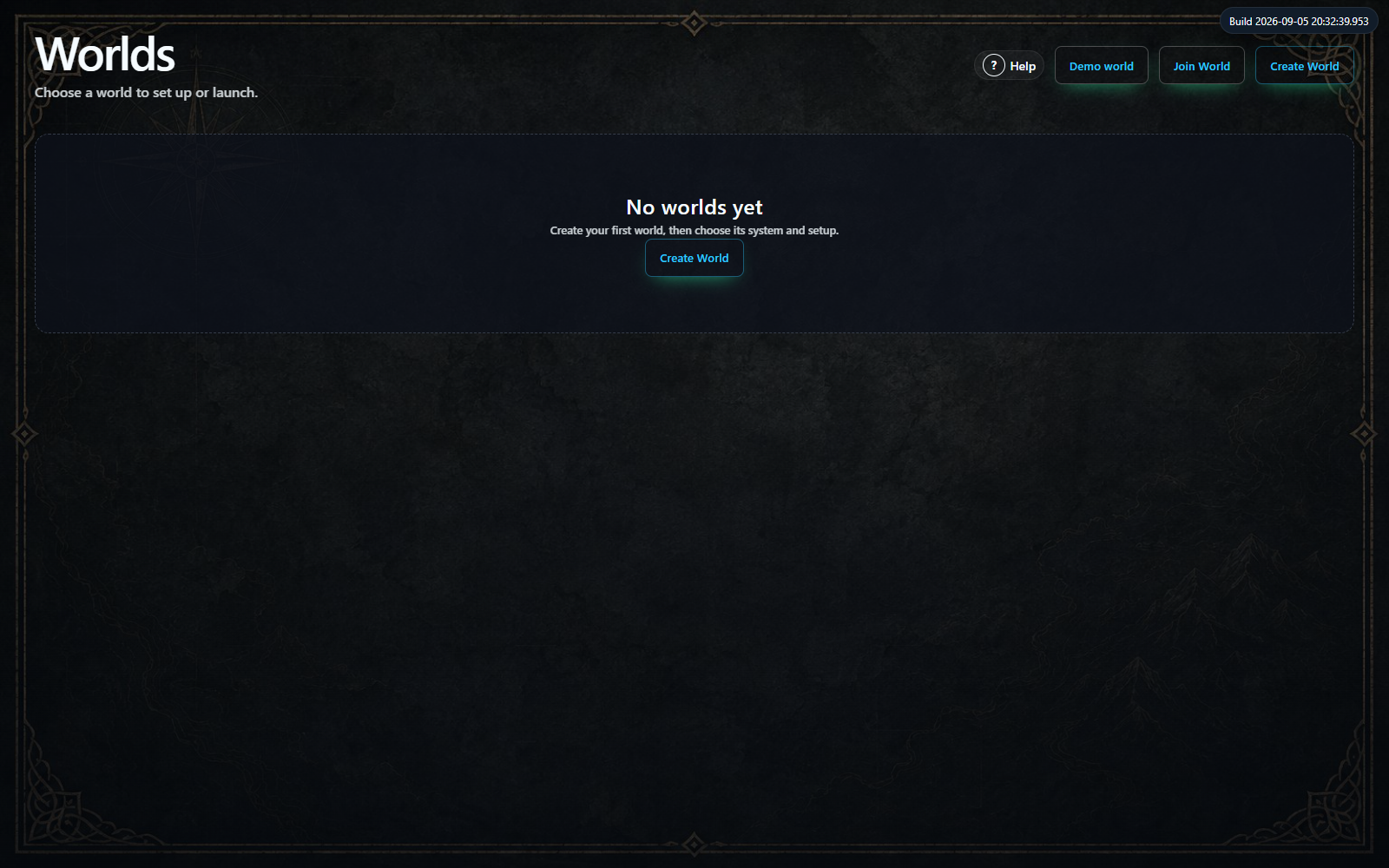
- Open aethera.tv/app/vtt in your browser. If you see the account screen, use Create free account or Sign in, then return to the launcher. Complete any account steps the site presents.
- On Worlds, choose Create World.
- Enter The Lantern at Willowmere in World name, then choose Create world. The setup wizard opens.
The five wizard steps are System & Modules, World, Players, Invitations, and Review. Follow them in order.
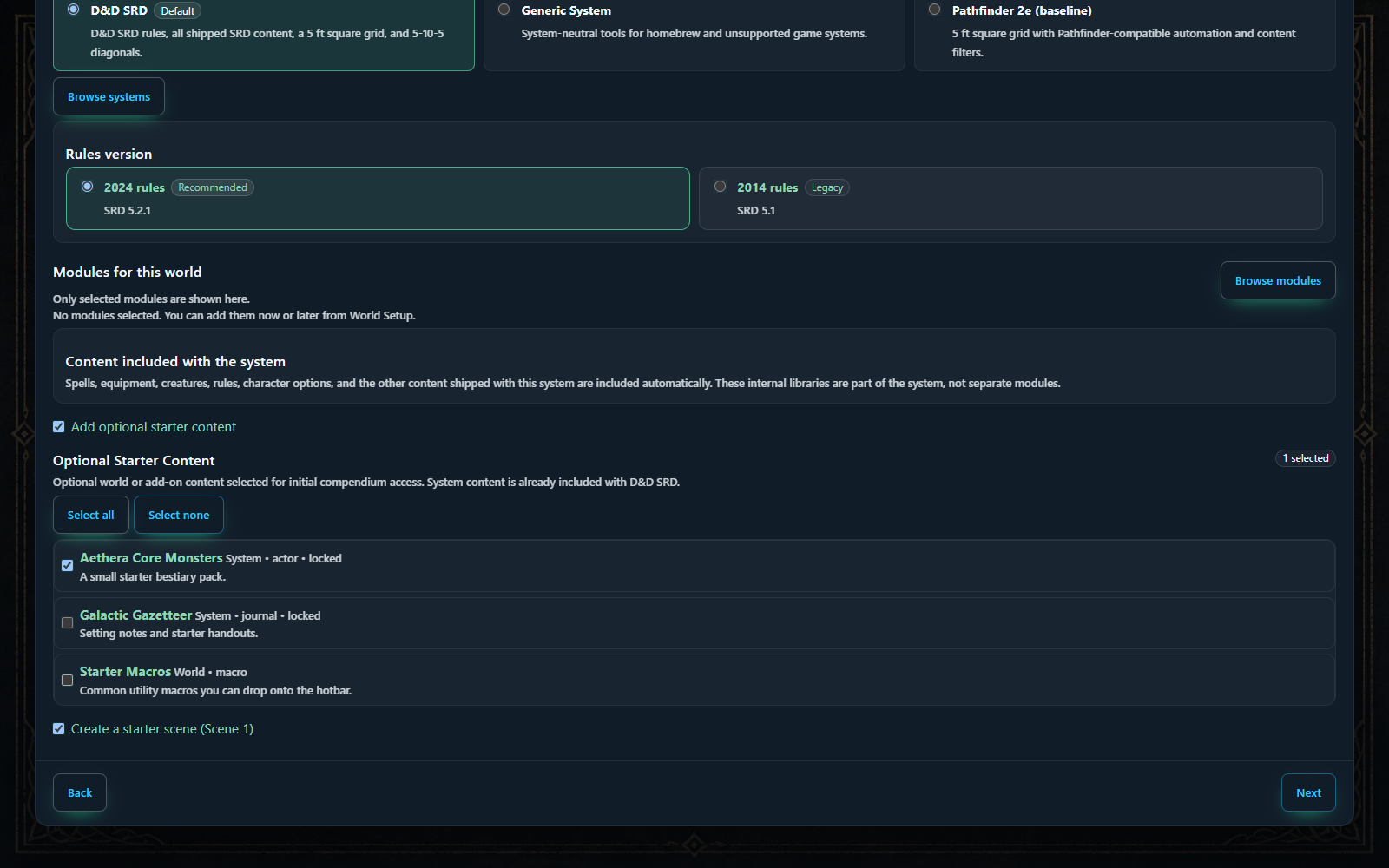
System & Modules
- For this walkthrough, keep D&D SRD and 2024 rules. Keep the module list empty while learning.
- For this fantasy walkthrough, keep Add optional starter content checked, keep Aethera Core Monsters selected, and uncheck Galactic Gazetteer and Starter Macros. The bestiary is optional; you can turn off starter content for a smaller practice world. Content included with your chosen game system is also available automatically.
- Keep Create a starter scene (Scene 1) checked. Scroll within the wizard if this option is below the visible area.
- Choose Next.
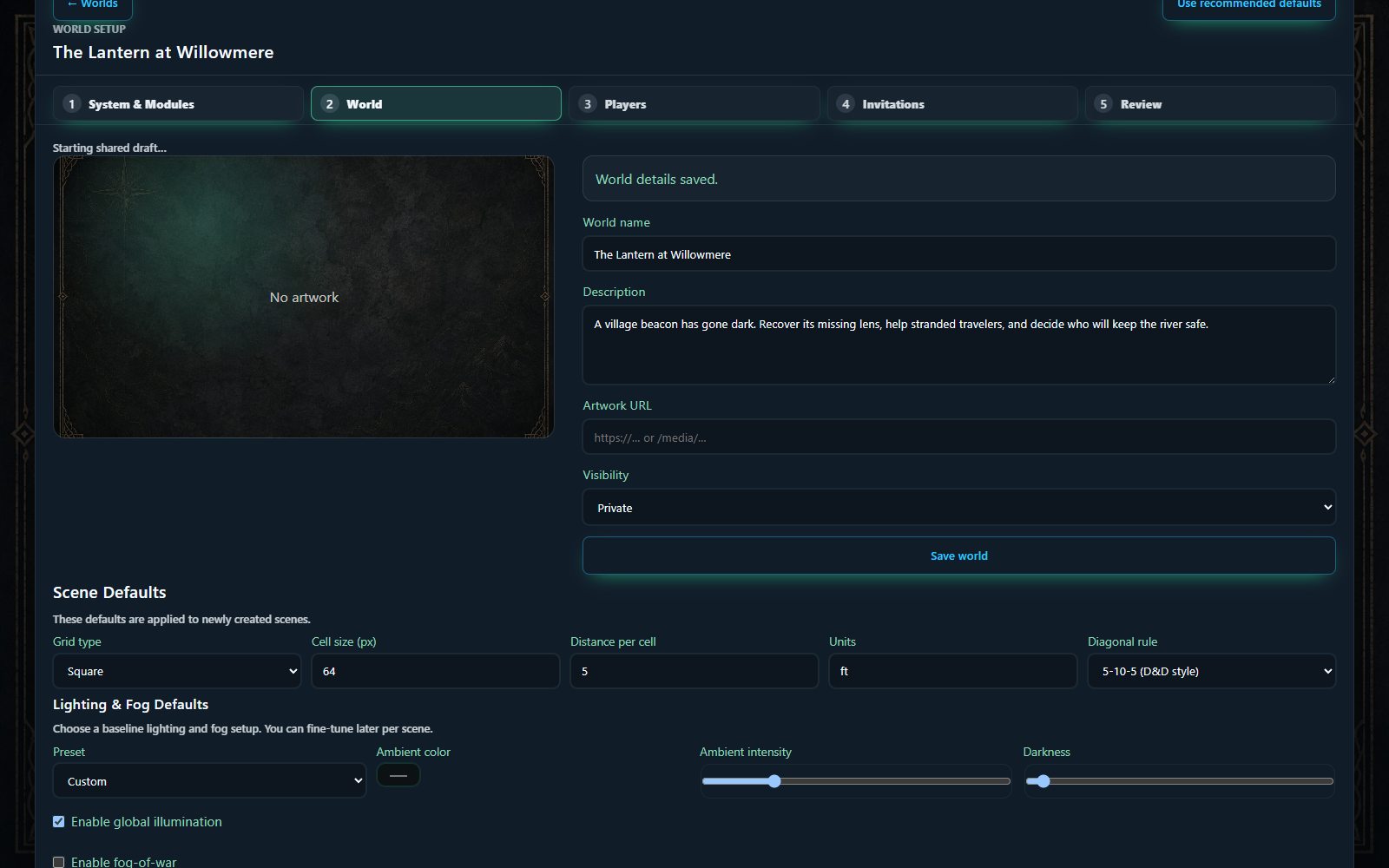
World
- Enter a short description: A village beacon has gone dark. Recover its missing lens, help stranded travelers, and decide who will keep the river safe.
- Keep Visibility: Private, then choose Save world for these world details. Leave artwork empty for now.
- Set Grid type: Square, Cell size (px): 64, Distance per cell: 5, and Units: ft. Keep the selected system's diagonal rule for this exercise.
- Under Lighting & Fog Defaults, start with Bright day (global illumination). Keep Enable global illumination checked and uncheck Enable fog-of-war. The preset name changes to Custom when you edit a setting; that is expected.
- Choose Next. The scene defaults are saved through the wizard.
Why 64 and 5 are different: our supplied map is 1,536 by 1,024 image pixels. At 64 pixels per square, it covers 24 by 16 squares. At 5 feet per square, that is 120 by 80 feet. Changing the distance label does not resize the map picture.
Players and Invitations
- In Players, keep the three extra permissions unchecked for the first rehearsal: creating tokens, managing audio, and editing journals. You will assign a player's own character separately.
- Choose Next. In Invitations, keep Invite role: Player.
- Leave invitations until chapter 8, which explains joining and character ownership together. Keep the email field empty for now.
- Choose Next.
Review and launch
- In Review, check the system, rules version, grid, starter scene, and player permissions. Scene lighting preset: Custom is expected because you turned off fog.
- Choose Review authoritative plan. In plain language, this asks Aethera to prepare the setup changes for your review.
- Read the plan, check I reviewed this exact server-authored plan and want to apply it, then choose Apply confirmed server plan.
- Wait for the tabletop to open. Avoid clicking Apply repeatedly while it is working.
- If Prepare your first session opens, use Run tour for a brief orientation or Finish later to follow this guide. Checklist ticks are reminders; do the practical checks in this guide yourself.