Make a character and place a token
An actor is the stored character; a token is its piece on a particular scene. Choose one route: use Ari - Practice for the original Willowmere practice rules, or skip to Use guided setup for a D&D character below for a D&D campaign. Portrait artwork is optional; the interface displays an initial when an image is absent.
A simple practice character
- Return your GM view to 01 - Willowmere Dock. Open Actors, then Create actor or folder > New PC. PC means player character.
- Enlarge the sheet if needed by dragging its lower-right resize handle. Keyboard users can focus that handle and use Right/Down Arrow to increase its size. Scroll inside the sheet to reach fields below the visible area.
- On Attributes, enter Ari - Practice in Character name. Set the maximum HP field, to the right of the slash, to 10, then the current HP to 10, AC to 12, and Speed to 30. Use Friendly for Disposition. Leave the six ability scores at 10 for this interface exercise.
- In Token, keep Width (grid): 1 and Height (grid): 1, and set Nameplate: Always. Leave special vision and light settings alone while the teaching scenes have fog and token vision disabled.
- Close the sheet. Open it again through Actions for Ari - Practice > Open sheet and check the saved name and values. Close it before placing the token.
- Drag Ari - Practice from the Actors directory onto an open square of the dock map. The interface should report Placed token for Ari - Practice.
These practice numbers support learning the controls. The original practice adventure does not use damage or armor. For D&D or another full game, use an approved character and check its abilities, saves, skills, equipment, features, spells, resources, and rules version against the agreed rules before play. Do not infer that owning a weapon means it is equipped or that every rule is automated.
Check linked HP: right-click Ari's token, choose Show resources, change HP current from 10 to 9, and choose Save. Open the actor sheet and check that it also reads 9/10. Restore HP to 10 in the sheet and check the token again. Repeat this with the player's account after assigning ownership in chapter 8. The supplied practice story does not use HP loss, but this check teaches where to record it in a full game.
Use guided setup for a D&D character
For a D&D SRD / 2024 campaign, create a separate New PC and choose Create character. The following level-one example is the route used in the updated rehearsal; use your group's approved choices for your own hero.
- Name the character Bryn Stoneward. Assign the starting scores: Strength 15, Dexterity 14, Constitution 13, Intelligence 12, Wisdom 10, Charisma 8.
- Choose Choose character options. Use the filter to find and select Dwarf, Soldier, and Fighter.
- Read each choice's explanation. Apply suggestion supplies an eligible starting choice; review it before choosing Next. You can choose another eligible option to suit your character.
- At the background's ability increases, use STR 2, DEX 0, and CON 1 for this example. These are increases to the starting scores, not the final scores. Continue through skills, equipment, and other choices presented by the builder.
- At Ready to apply, review the complete character, then choose Apply changes once. Wait for the sheet to return and saving to finish.
- Close and reopen the sheet. For this example, check Strength 17, HP 12/12, Strength and Constitution saving-throw proficiency, and Athletics +5. Review the selected features and equipment too. Different choices can change these results.
- Drag the completed actor onto the scene, then assign that actor to its player using chapter 8. Use Bryn's name wherever that chapter uses Ari.
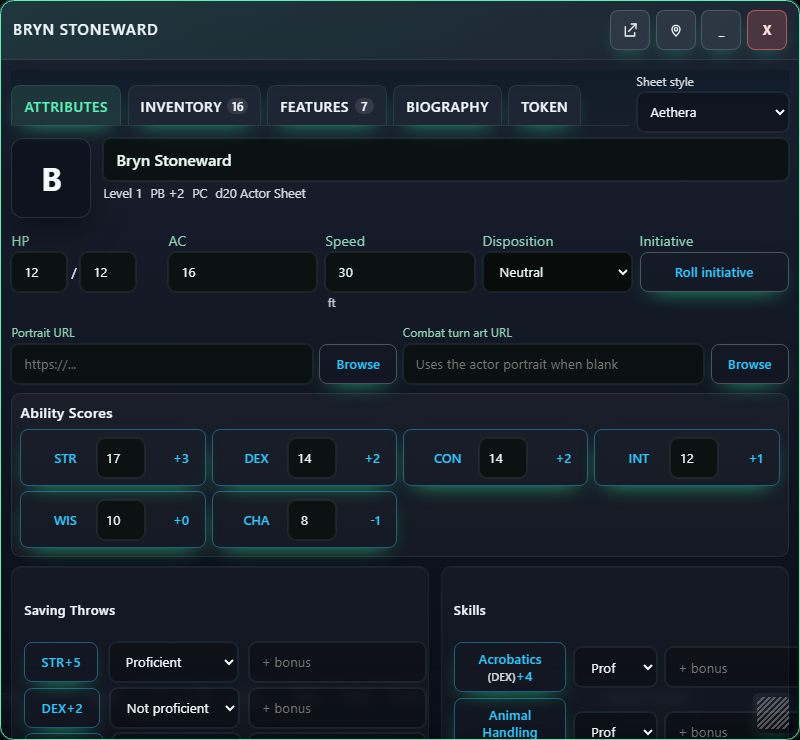
The builder handles the supported choices shown in its review. Check the resulting character with your GM and the agreed rules, especially before adding homebrew, changing equipment, or using a different rules version.
Add someone the GM portrays
To represent Nessa, use Create actor or folder > New NPC, name her Nessa, and set Disposition: Friendly. NPC means a character the GM portrays. In Token, use Nameplate: Always and uncheck Show bars on token for this noncombat character. Close the sheet and drag Nessa onto the map near the dock. Keep her under GM control. Orrin and Tamsin can be described aloud, or created the same way on their own scenes.