Rehearse the table before game night
Do this with one patient player or a separate test account. Two tabs signed into your GM account are both GM views and cannot check player permissions.
A five-minute player practice
- Confirm that both people name the same Live scene and see the correct map. Use Fit, then Zoom out if panels cover an important edge of the map.
- The player opens their actor's sheet, closes it, chooses Select tool, and drags their token one square. A map square is 5 feet in this campaign. Check that the GM sees the final position too.
- Open Chat Log in the Run workspace. Set the message composer's Visibility to Public, type /roll 1d20, and choose Send chat message. Check the roll card in both browsers. Your number will be random; the screenshot's 15 is only one result.
- Send a short normal message such as Ready to play. Explain IC as speaking in character and OOC as speaking as the player. Use OOC for technical questions. Leave the speaking language at None for a shared technical check.
- Ask the player to read Welcome to Willowmere and confirm the private notes are absent. Agree how to ask for help or a break during play.
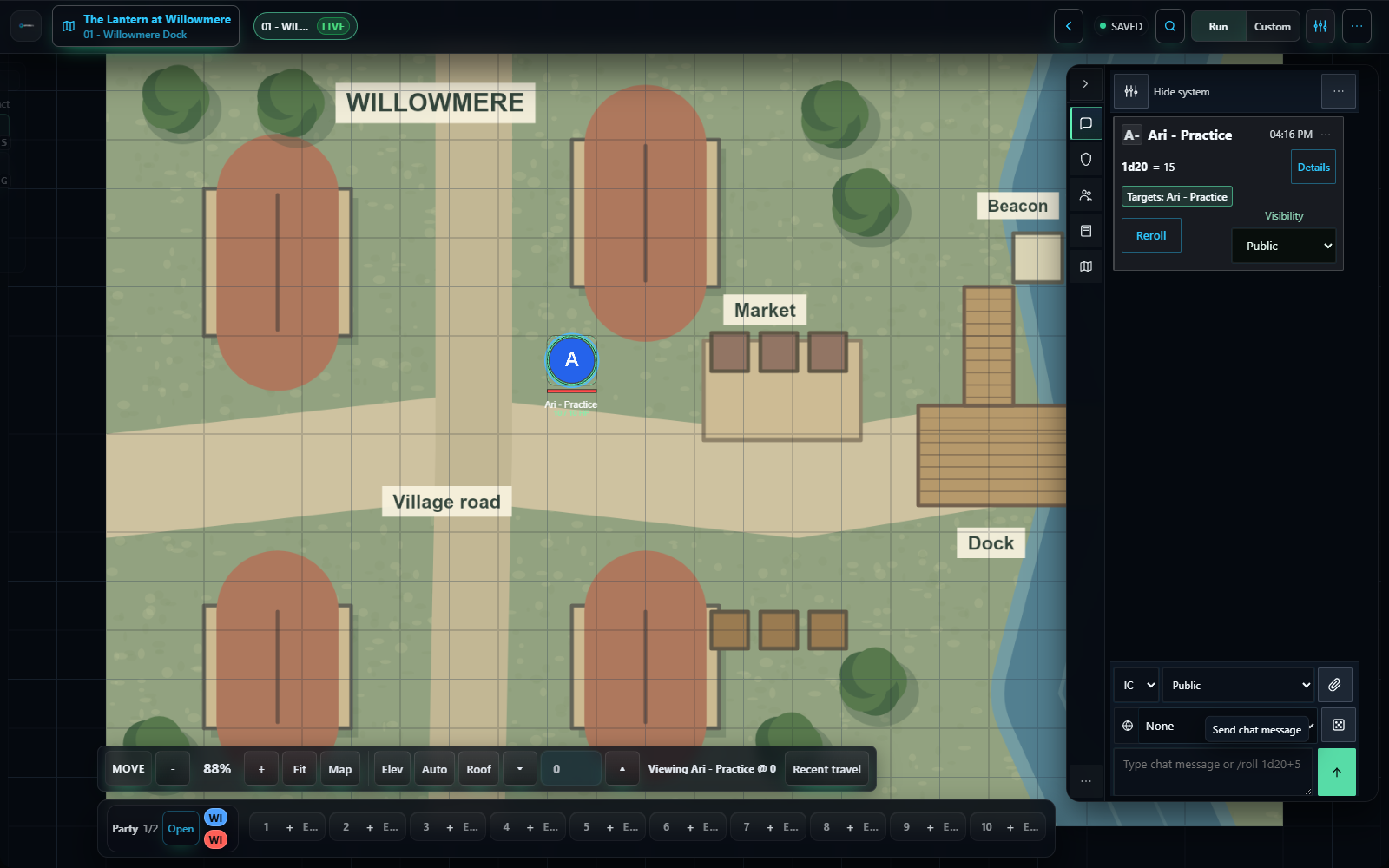
These checks establish that your group can use the table together. The Saved indicator tells you about persistence; checking the other person's view also confirms their connection and permissions.
Practice moving to the next location
- As GM, choose View on 02 - Old Bridge to inspect it. The player should still be at the dock; a GM preview is useful for preparation.
- Open the bridge's action menu, choose Visibility: Public, and choose Show in navigation if its navigation is hidden.
- Choose Activate and confirm the single prompt. Check that the GM header marks the bridge Live.
- Check the player window: it should follow to the bridge automatically. Return to the dock and activate the bridge again to practice revisiting a location. If a player loses their connection, pause important changes; when they reconnect, their view should catch up to the current Live scene. Use the ordinary World link if you need to reopen the table.
- Place each hero on the new map by dragging its existing actor from Actors onto the arrival area. In the rehearsal the new scene started without the dock token; changing scenes did not put that piece on the bridge automatically. Reuse the stored actor, then check control from the player's side.
- Repeat your own preview check for the chapel. Keep it private until needed. Return the group to the dock when practice ends so game night starts in the right place.
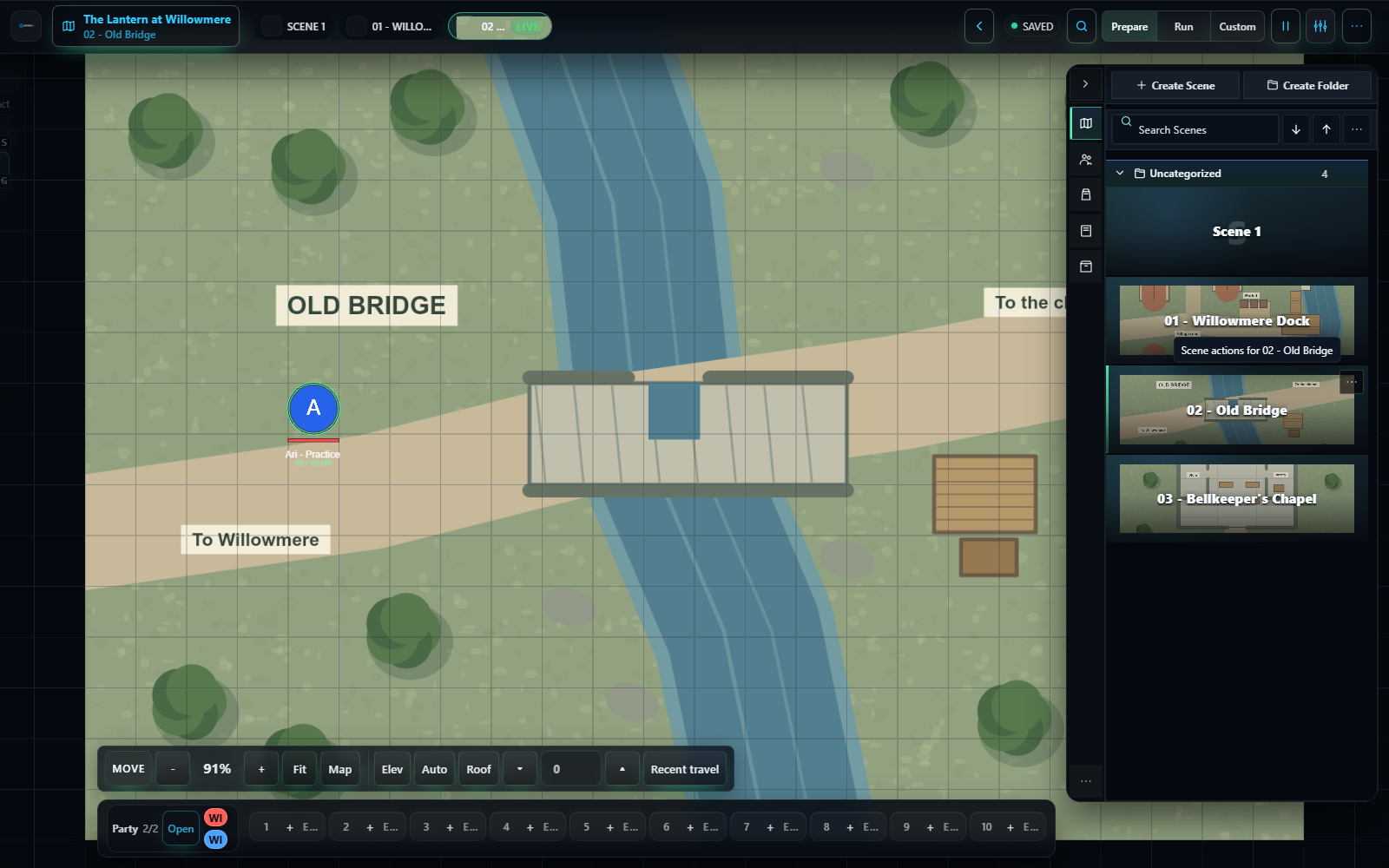
If the two browsers still disagree after reconnecting, pause play and check the connection, scene visibility, and character ownership before continuing. Preserve any unsaved text before reopening the world. Do not create duplicate worlds or characters to recover a connection.
Your ready-to-host checklist
- Every player can enter with their own account and can see the correct opening map.
- Each player controls their own character; GM characters remain under GM control.
- Everyone can find chat, make a public roll, and read the handout.
- Private notes and unrevealed scenes are absent from the player view.
- Players follow a scene transition and a return visit, and you know how to recover after a lost connection.
- Your group has chosen the original practice rules or a full ruleset with approved characters.
- You know where everyone will talk, how to reconnect, when to break, and when to finish.
- You have read the GM run sheet and can explain the lens, the rescue, and the possible outcomes.