Add players and give each their own character
Add an existing account by username
- Have the player create or sign in to their own Aethera account and tell you its exact username. Each person uses their own account.
- Return to Worlds at aethera.tv/app/vtt. Select your world's name to open its setup, then the Players tab.
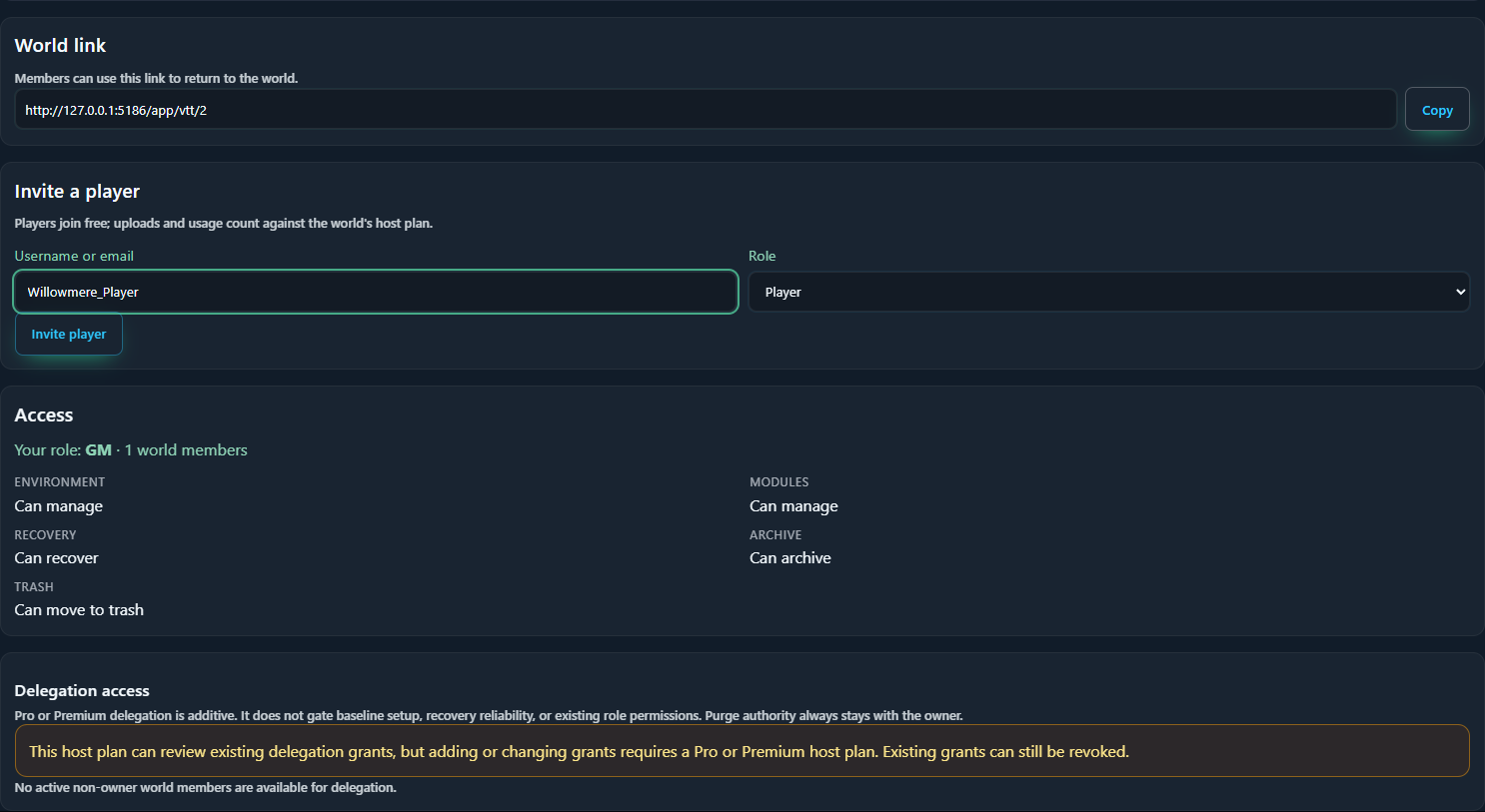
- Under Invite a player, enter the existing username in Username or email. Keep Role: Player, then choose Invite player.
- Look for Player added to the world. An exact existing username can add that account directly.
- Copy the World link above the form and share it privately with that player. This is the returning member's world address. Their own world number will differ from the screenshot.
- The player opens that world link while signed in. If a first-time destination screen appears, complete it and continue to the requested page. Once inside, they can choose Finish later on the introductory checklist and use Fit.
Use an invitation link
You can also open Settings > People & permissions > Invitation Links, keep Role: Player, choose an expiry, and use Create invite link. Share the resulting link privately. The recipient opens it, signs in or completes account creation if needed, and accepts the invitation to join the world. Both an already signed-in player and a player returning from sign-in can use it. Keep the ordinary World link for later sessions.
The setup Review screen's Saved pending invitations count reflects saved invitations. A count is a useful check that one was created; having the player actually enter the correct world is your joining checkpoint. Revoke links you no longer need, and avoid showing them in screenshots or recordings.
Assign the character to one player
World membership and character ownership are separate. The Player role gives normal participation; Owner on a particular actor gives control of that character. It does not make the player the world owner.
- As GM, launch the world. Open Settings > People & permissions > Invitation Links. In Accepted players, find the player's username and the small numeric ID displayed beside it. Write down that player's number. Use their number, not the example number 2 from our screenshots.
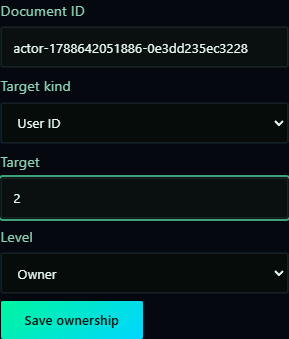
- Open Actors > Actions for Ari - Practice > Configure permissions. The Settings panel opens and focuses Document ID in Ownership & Visibility. The actor's ID is already filled in.
- In that same form, choose Target kind: User ID, enter the player's numeric ID in Target, keep Level: Owner, and choose Save ownership.
- Use this Save ownership form for the existing actor. The separate Local creation presets section applies to future creations and is not the assignment you need here. Do not change world-wide role permissions for this step.
- In the player's browser, open Actors, find Ari - Practice, and open its sheet. Wait for the ownership change to save and reach the player before testing control.
- Let the player choose Select tool, then drag Ari's token one square. Check the resulting position from the GM side. Repeat with a separate actor and the correct user ID for every player.